Purpose
Learn how to:
- Collaborate effectively on documents by adding, editing, and managing comments directly within SimplerQMS.
- Track and manage feedback for future document updates.
Expected Outcome
- Users are equipped to use the comment dashboard in SimplerQMS
Prerequisites for all
- Must be logged in to SimplerQMS
- Must be a member of one of these ‘User Groups’ to view records:
- All internal and external users
- Must be a member of one of these ‘User Groups’ to create new records
- All Contributors
Section 1: Workflow Overview
The flowchart below outlines the Released Document Commenting feature of SimplerQMS.
The Released Document Commenting feature allows all users, including Read and Sign, to add comments on Released Documents through a Comment Dashboard. After creation, the initiators can edit or withdraw their comments. Comment visibility is controlled by document permissions, ensuring that classified or project, or site-specific comments remain hidden from unauthorized users. Document Authors can accept, reject, or postpone comments during the next update of the document. If comments remain unresolved or postponed, they are automatically set to be reevaluated when a new major version of the document is created.

Section 2: Accessing the Comment Dashboard – Comment Initiator
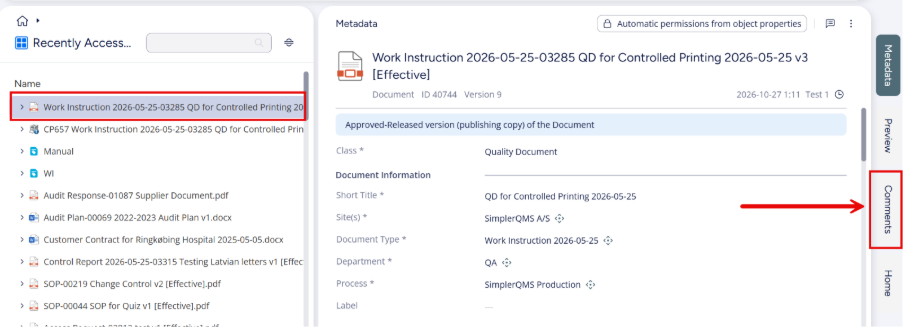
Locate the released document in SimplerQMS. The comment dashboard will appear automatically.
Section 3: Adding, Editing and Withdrawing a Comment
Step 3.1 – Adding a Comment – Comment Initiator
To add a comment:
I. Enter the comment in the comment field.
a. Specifying the ‘Page’ and ‘Section’ is not required, but can provide valuable context for the Document Author when processing the comment
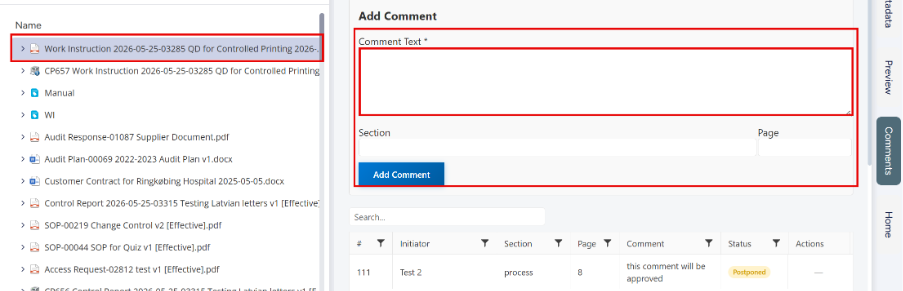
II. Click “Add Comment”.
Note: Comments can only be added to released documents.
Step 3.2 – Editing a Comment – Comment Initiator
As the initiator of the comment, you can edit your own comments while they are still pending. To do so:
I. To edit a comment, find the comment in the comment dashboard and click “Edit”.
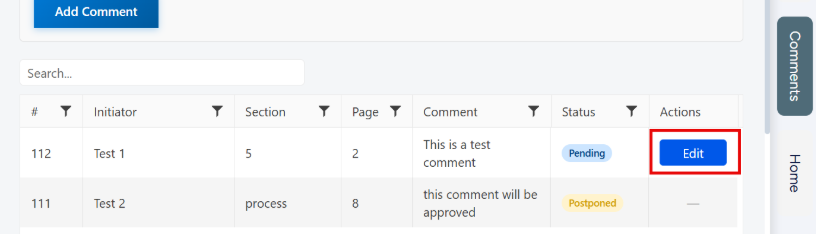
II. The selected comment will appear in a pop-up. Make changes and click “Save” to apply or “Cancel” to discard.
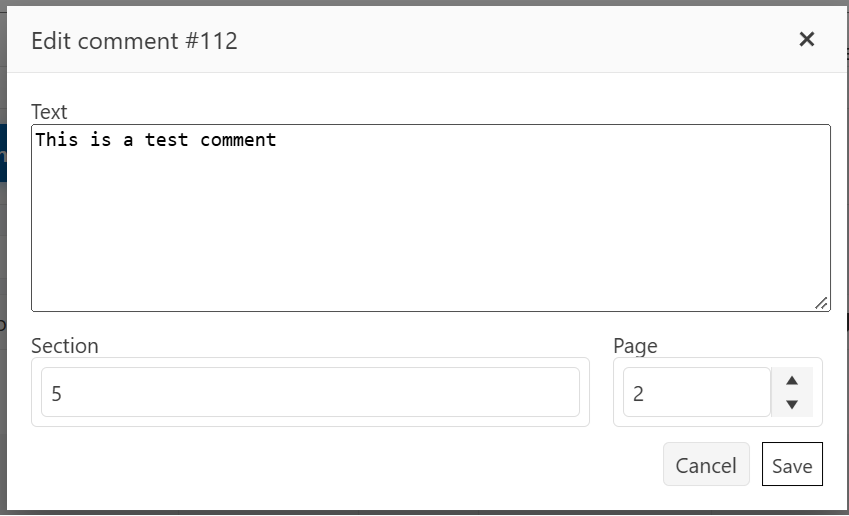
Step 3.3 – Withdrawing a Comment – Comment Initiator
To withdraw a comment, locate the comment and click on ‘Withdraw’ under the Workflow section.
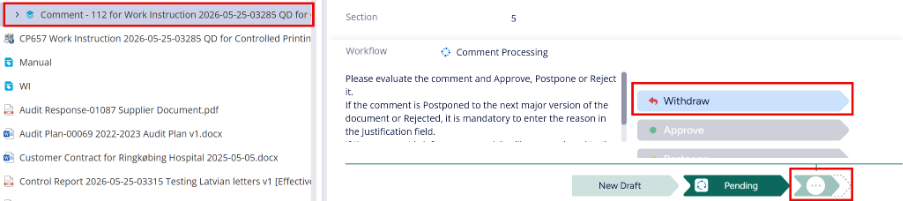
You can find all comments under Views > Main views > 16. Comments
Section 4: Managing Comments – Document Author
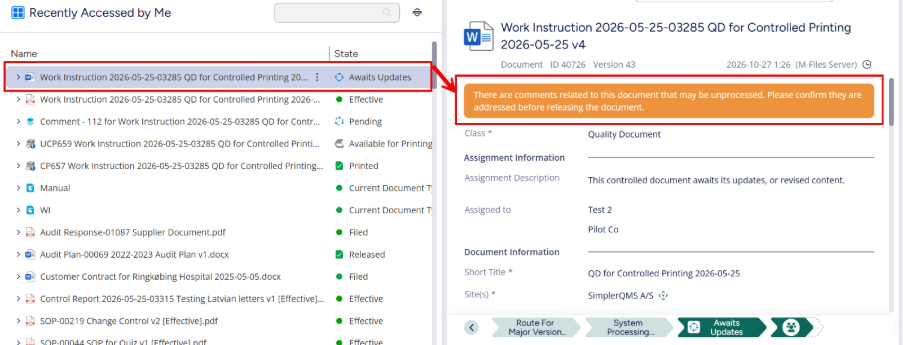
Comments can be approved, rejected, or postponed by authors on the document’s Working Copy once the document has been routed for an update. Comments should primarily be processed through the Comment Dashboard, located on the right pane under the Comments tab.
An orange banner will appear at the top of the document’s metadata card if there are unprocessed comments.
Step 4.1 – Approving a Comment
When you approve a comment, the comment is linked to the specific version of the document where it was implemented. To approve a comment:
Locate the comment on the comment dashboard and click ‘Approve’.

Step 4.2 – Rejecting a Comment
Rejecting a comment indicates that the comment is not deemed appropriate or relevant to the document. To reject a comment:
Locate the comment from the comment dashboard and click ‘Reject.

Step 4.3 – Postponing a Comment
Postponed comments are carried over to the next major version of the document, giving the author another opportunity to review and address them at a later date. To postpone a comment:
Locate the comment from the comment dashboard and click ‘Postpone’.

Notes:
- Postponed comments are automatically carried over to the next major version of the document. These are visible on the Working Copy of the document.
- Unprocessed comments are automatically postponed when the document is released.
