This 15-minute microtraining (video and infographics) introduces Recorded Issues Management in SimplerQMS. Learn how to document, assess, investigate, and manage quality-related issues, including Non-Conformances, Deviations, Audit Findings, Supplier Issues, and Customer Complaints. You’ll also learn how Recorded Issues relate to CAPA and how they move through a controlled workflow.
🧭 Course overview
After completing this training, you will understand how Recorded Issues work in SimplerQMS, which issue type to use, how they relate to CAPA, and how to manage an issue from creation to release and archiving.
The course contains the following chapters:
- Why – understand why quality-related issues need to be documented and managed
- Basics – learn the different types of Recorded Issues, their relationship with CAPA, and the Recorded Issue lifecycle.
- How-to – see how to create, review, assess, investigate, and manage Recorded Issues in SimplerQMS.
🎓 Learning objective: Get a clear understanding of Recorded Issues and learn how to document, assess, investigate, and manage quality-related issues in SimplerQMS.
⏱ Training duration: 15 min.
🎯 Target group: Users involved in reporting, assessing, investigating, reviewing, or approving quality-related issues in SimplerQMS.
1. WHY: Quality Issues Management matters (Read: 3 min)
Quality issues can happen in any organization.
A product may not meet its specifications, an employee may identify a deviation from an approved procedure, an audit may reveal a finding, or a customer may report a problem.
In life-science companies, these situations need to be documented, assessed, and followed up according to established procedures. This is where Recorded Issues Management comes in.
1.1 Why recording quality issues matters
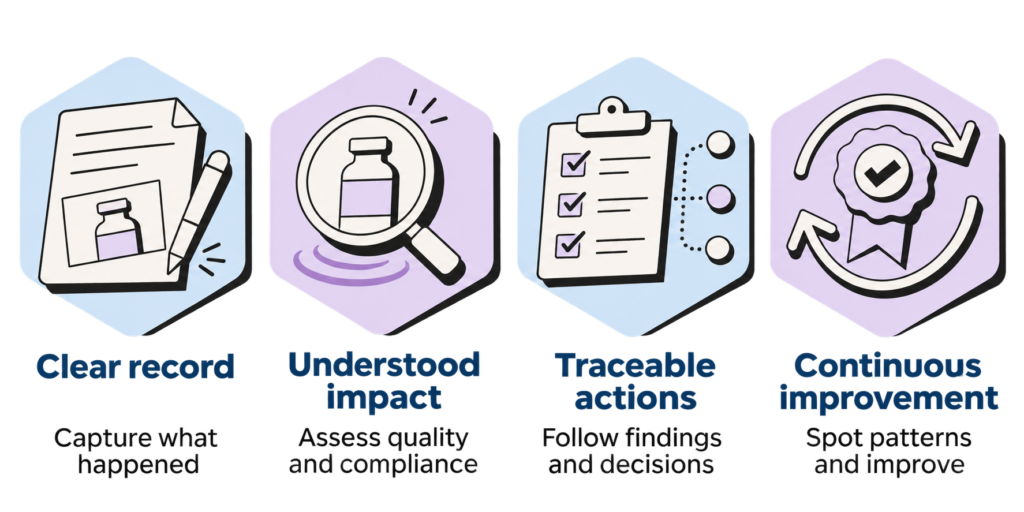
Recording quality issues in a structured and traceable way helps organizations:
- Document what happened – Keep a clear record of the issue, including relevant details and supporting evidence.
- Assess potential impact – Understand how the issue may affect product quality, processes, or compliance.
- Track investigation and actions – Record findings, decisions, and any follow-up activities.
- Support continuous improvement – Use recorded information to identify recurring problems and opportunities to improve processes and ways of working.
A Recorded Issue is more than a record of something that went wrong. It provides a way to follow the issue, document decisions, and keep track of how it is handled.
2. BASICS: Understanding Recorded Issues (Video: 4 min)
[Add video link]
2.1 What can be recorded?
Recorded Issues are used to document different types of quality-related problems and improvement opportunities. Depending on the organization’s SimplerQMS configuration, available issue types may include:
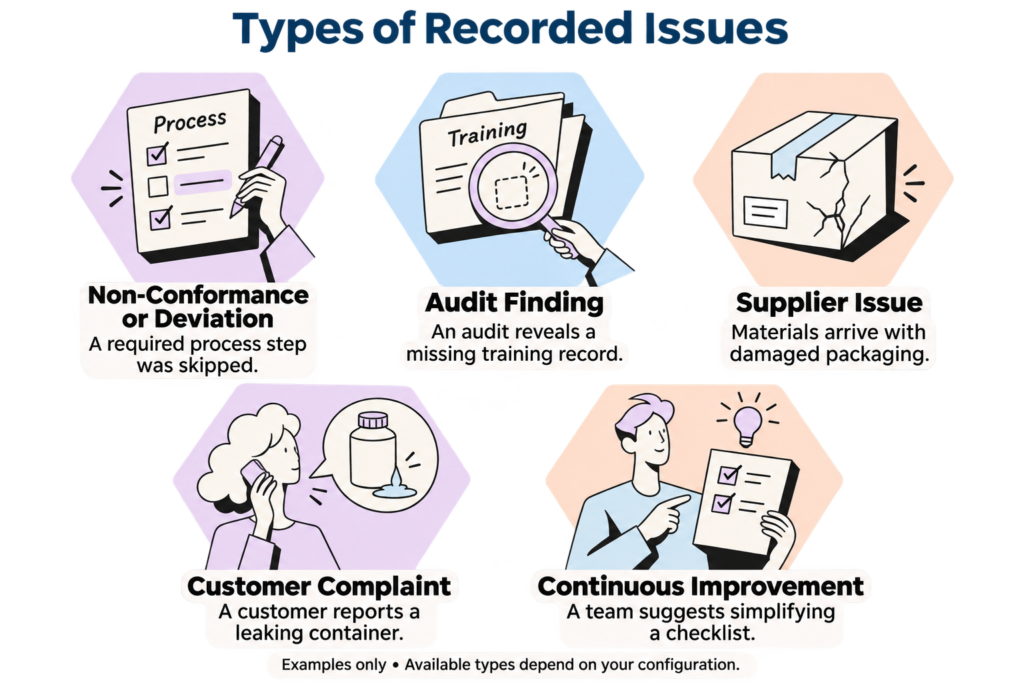
- Non-Conformance or Deviation – When a product, process, or activity does not meet a specified requirement or an approved procedure is not followed.
- Audit Finding – An issue or observation identified during an audit.
- Supplier Issue – A problem involving a supplier, supplied product, or service.
- Customer Complaint – A concern or dissatisfaction reported by a customer.
- Continuous Improvement – An opportunity to improve a process, product, or way of working.
The appropriate issue type should be selected based on the situation and the organization’s procedures.
2.2 Recorded Issues and CAPA: What’s the difference?
Recorded Issues and CAPA serve different purposes in a quality management system.
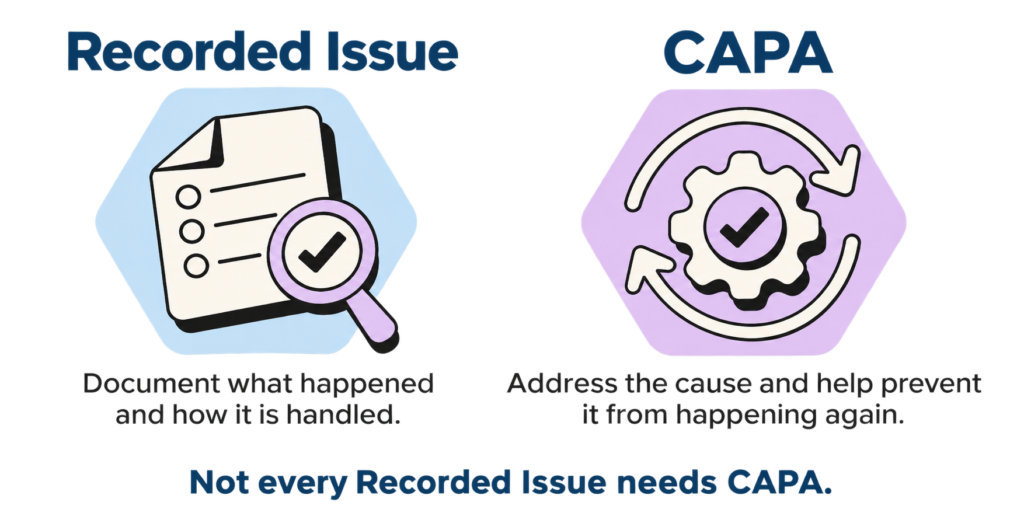
- A Recorded Issue documents a problem, event, finding, or improvement opportunity and how it is assessed and handled.
- CAPA (Corrective and Preventive Action) is used when further action is needed to address the cause of an issue and help prevent it from happening again.
Not every Recorded Issue requires a CAPA.
The decision depends on the assessment, investigation findings, significance of the issue, and the organization’s procedures.
- If CAPA is required: Initiate a CAPA through the configured workflow and manage it according to the organization’s CAPA procedure.
- If CAPA is not required: Document the decision and its justification in the Recorded Issue.
2.3 The Recorded Issue lifecycle
Recorded Issues in SimplerQMS follow a structured workflow:
Creation > Planning > Execution > Review and Approval > Release > Archiving
Each phase supports a different part of the process, from documenting the initial issue to completing actions, reviewing the record, and retaining it for future reference.
The available activities and workflow may vary depending on the organization’s configuration.
3. HOW-TO: Managing Recorded Issues in SimplerQMS (Video: 6 min)
[Add video link]
3.1 Step-by-step guide to do it yourself
After watching the video or going through the steps below, you can now manage Recorded Issues in SimplerQMS.
Step 1: Create a Recorded Issue
Go to Create > Document > Recorded Issue. Select the appropriate issue type, enter a title and description, complete the required fields, and click Create.
Recorded Issues can also be created from related records. For example, create a Supplier Issue from a supplier record, an Audit Finding from an audit, or a Customer Complaint from a customer record.
Step 2: Complete the Initial Review
The Initial Reviewer checks the Recorded Issue and makes any necessary changes. Once finished, select My Initial Review Task Completed to send the document back to the creator.
The creator can then send the Non-Conformance to the Issue Handler for assessment.
Step 3: Assess and Investigate the Issue
Review the issue details, take any immediate action needed, and investigate according to the organization’s procedures. Document the findings, assess the potential impact, and decide whether a CAPA is needed.
If a CAPA is not needed, document the decision and justification. If one is needed, go to Action Tasks > Create CAPA, where available, and follow the CAPA process.
Step 4: Review and Approve the Recorded Issue
Check that the issue details, investigation findings, actions, and required documentation are complete. Complete the required confirmations and electronic signatures, then submit the record for review and approval. Address any feedback or outstanding requirements.
3.2 Practical tips
💡Write a clear issue description
Include enough detail to explain what happened, where it happened, and what was affected.
💡Document findings and decisions
Keep investigation results, CAPA decisions, and supporting evidence in the Recorded Issue.
💡Keep track of required actions
Document completed activities and follow-up actions as the issue moves through its workflow.
💡Review the record before release
Check that required information, actions, and approvals are complete before releasing the Recorded Issue.
3.3 More detailed information in the Knowledge Base
For more guidance on creating and managing Recorded Issues, check the related step-by-step article in our SimplerQMS Knowledge Base.
