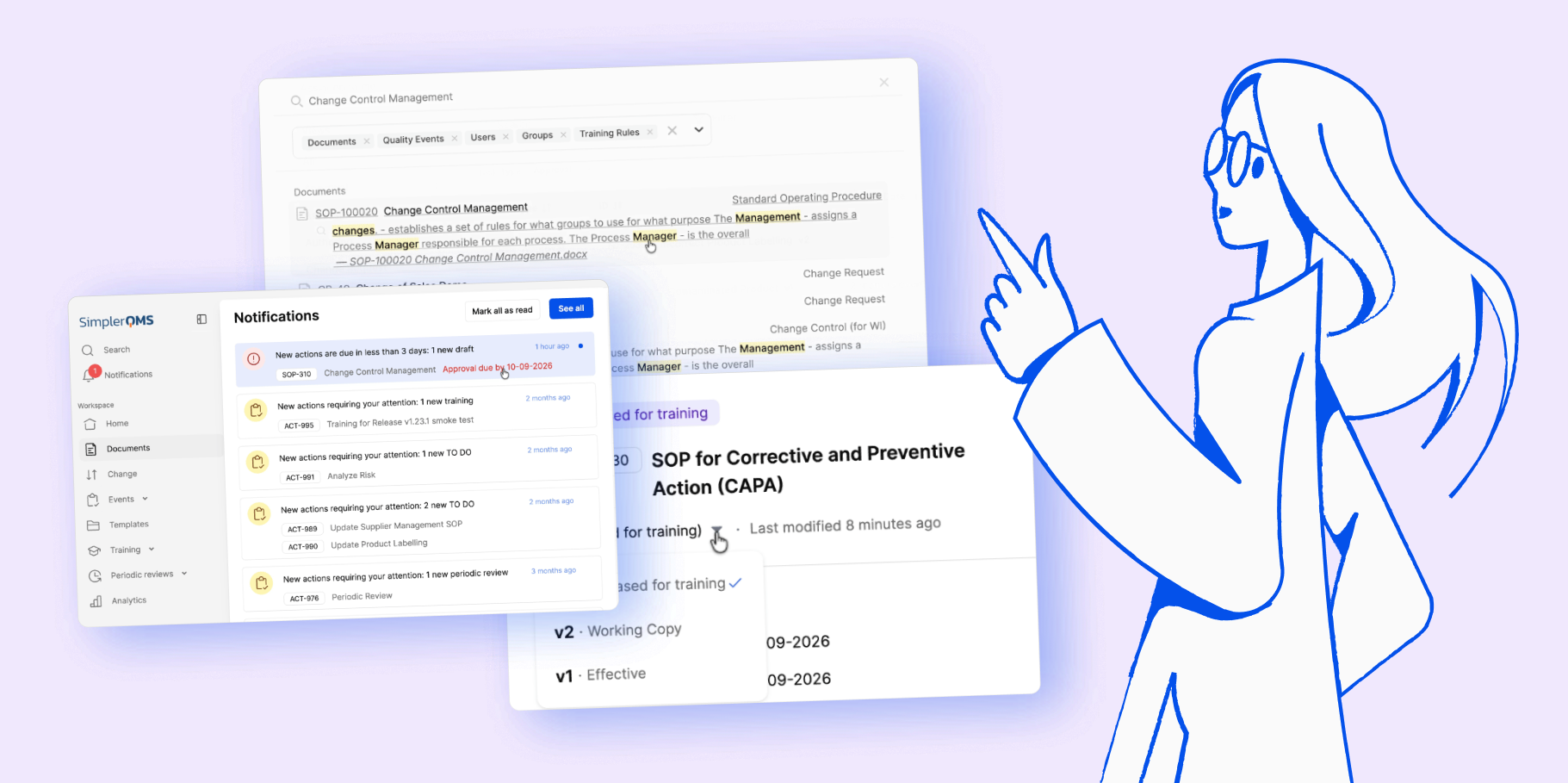
Quality teams work with a lot of information every day. Finding the right document, knowing which version you’re viewing, and keeping important quality activities on schedule shouldn’t add unnecessary complexity.
This month, SimplerQMS brings improvements that make it easier to navigate documents, find information across quality records, and stay informed about important due dates.
Here’s what’s new.
Bring Your Document Versions Together
Managing different versions of the same document can make it harder to know where to look and which version you need.
With the Unified Document View, different versions of a document are now grouped under one document view rather than appearing as separate entries across Working Copies, Effective & Retired, and Archived tabs.
The latest Effective version is shown by default. If there is no Effective version, the Draft is shown. You can access relevant major versions through the version picker, while minor versions and detailed version information remain available in the full version history.
Document-level Audit Trail information also brings together activity for the document, its working copy, and its released versions.
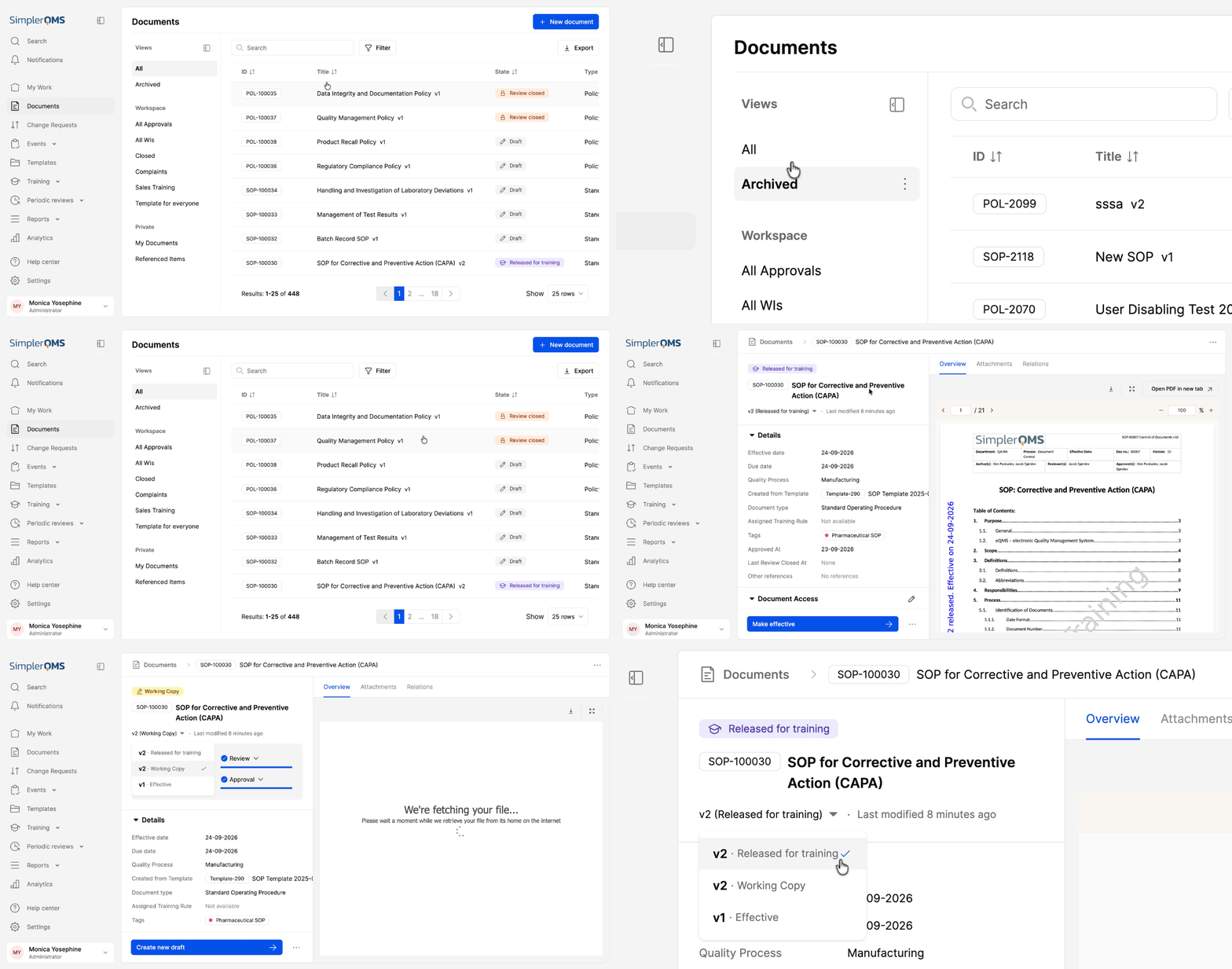
Here’s what that looks like in practice:
- Find a document more easily. Related versions are grouped under one document view.
- Understand version relationships. See the relationship between working and released versions more clearly.
- Know which version you’re viewing. Major and minor version information is displayed when viewing older versions.
- Review document activity in one place. Document-level Audit Trail information brings activity across versions together.
- Keep your workspace focused. The Documents view is simplified to All and Archived, and the views section can be collapsed for more working space.
The document workflow has not changed, and no versions have been removed. Existing versions remain accessible through the version picker or full version history.
Find Information Across Your Quality Records
Finding the right document is one thing. Finding a specific piece of information inside that document can be another challenge.
With improved Search, you can now search within the contents of PDFs, images, and supported Microsoft Office documents, in addition to record titles and metadata.
For scanned PDFs and images, Search can also identify recognizable text using Optical Character Recognition (OCR).
Search results identify the file containing the match and display a relevant text snippet, helping you understand why a file matches your search.
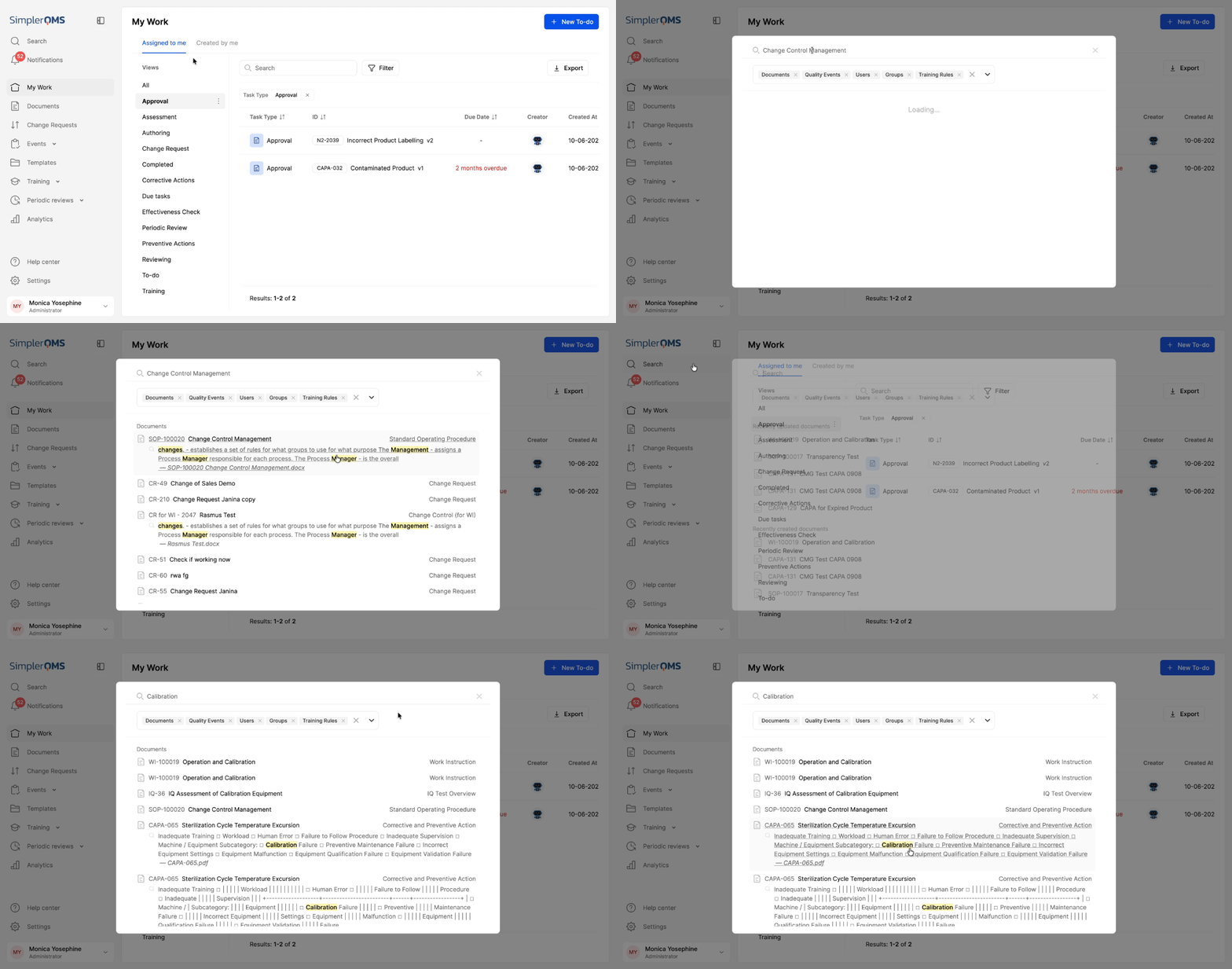
How this supports your work:
- Search inside files. Find information within supported PDFs, images, and Office documents.
- Search scanned records. OCR can identify recognizable text in scanned PDFs and images.
- See why a result matches. Relevant text snippets provide additional context.
- Spend less time opening attachments. Find information without manually reviewing individual files.
- Respect access permissions. Users only see information they have permission to access.
This makes it easier to locate records, evidence, and other quality information when you need it.
Stay Informed About Important Due Dates
Important quality activities often involve multiple people and deadlines. We’ve improved due-date management across Documents, Change Requests, and Templates to make those deadlines more visible and actionable.
Users in the Author, Reviewer, and Approver roles can now receive notifications when an assigned item has not been approved, and its due date is approaching or overdue.
Approaching notifications are sent when the due date is within 72 hours, while overdue notifications are sent once the due date has passed.
We’ve also added clearer due-date information throughout the application, including Approval due dates in Documents, Change Requests, and Templates tables, as well as additional information through tooltips in My Work.
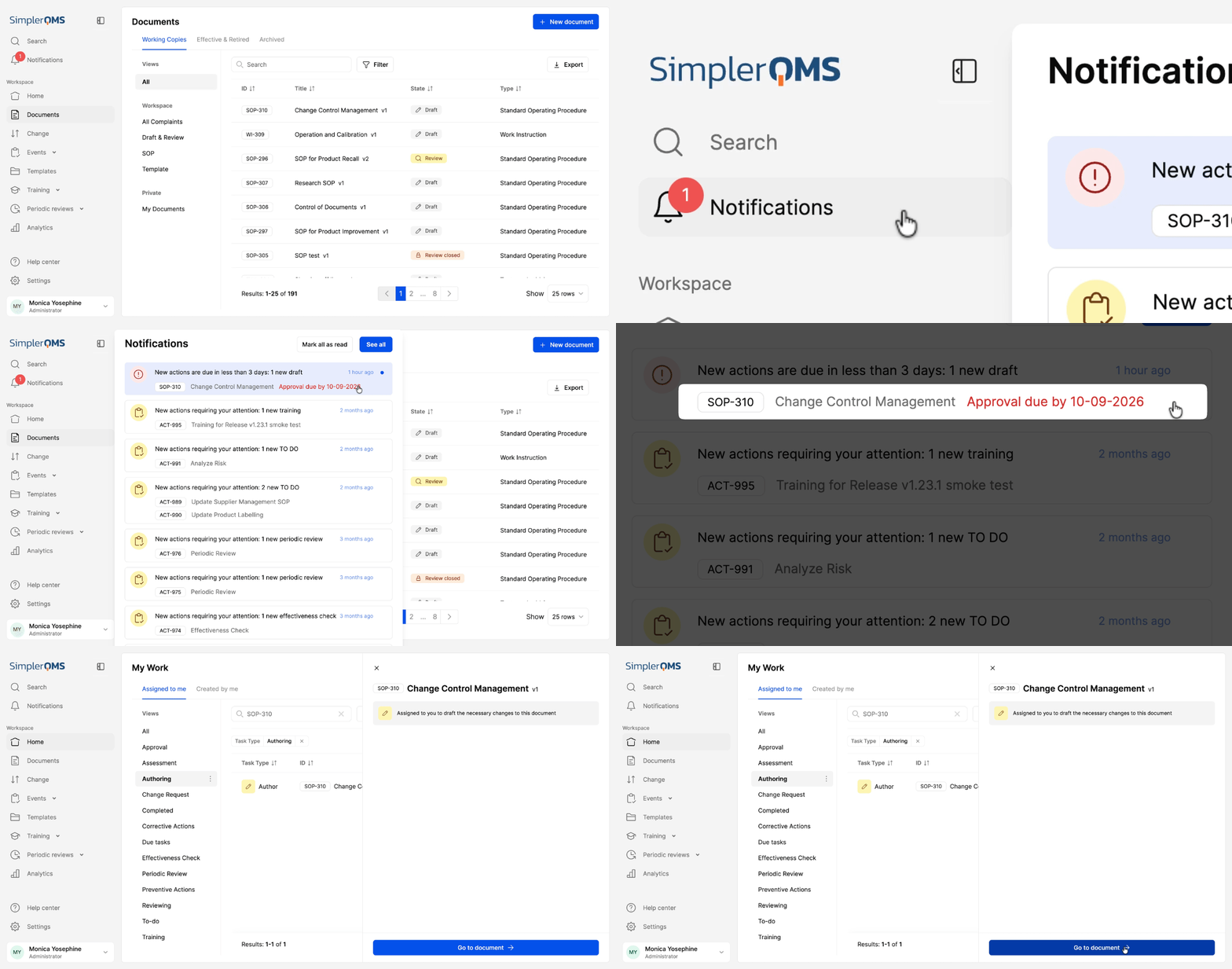
Here’s what that means for your team:
- Know when a deadline is approaching. Receive a notification when an assigned item is due within 72 hours.
- Know when work is overdue. Receive a notification after the due date has passed.
- Understand what the date relates to. Additional information and clearer wording help explain due dates in the interface.
- Keep context around changed dates. A justification is required when a previously set due date is changed after the workflow has reached the Approval step and subsequently returns to Approval.
- Include due-date information in exports. Due date and Approved date are now available when exporting Documents, Change Requests, and Templates data to CSV.
The justification for a changed due date is also captured and shown in the version history, providing context for audits and record keeping.
Keep Quality Information Within Reach
From document versions and search results to upcoming deadlines, these improvements give teams clearer information when you need it.
Whether you’re reviewing a document, looking for specific quality information, or keeping track of work assigned to you, the latest updates help make those everyday tasks clearer and more manageable.
For the complete list of updates, check out the release notes.
Explore these new features and enhancements. Log in or book a demo.
