Prior to trying this solution, please make sure that you have rebooted your PC. This issue occurs if a machine or laptop is not rebooted for quite a while.
If rebooting does not help, Here’s a simple guide to help resolve the issue and get the M-Files application working again :
1. Open File explore
2. Go to this Path: C:\Program Files\M-Files\Latest M-Files Version (example: 26.2.15718.4\Bin\x64)
3. Look for MFStatus and double click on it.
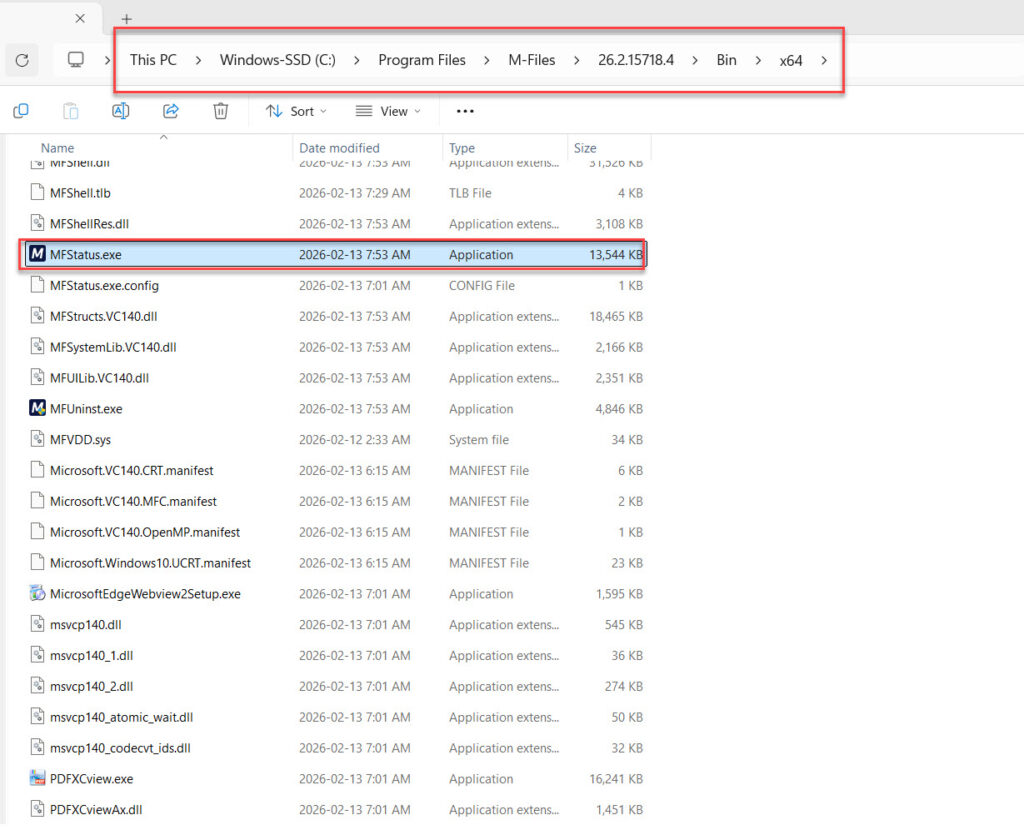
Once MFStatus is running, attempt to log back into the M-Files system. This should resolve the issue and allow you to use the application as expected.
To prevent similar issues from occurring in the future, we recommend ensuring that M-Files is added to your antivirus exclusions list. Antivirus software can sometimes interfere with M-Files operations, causing services like MFStatus to stop running. To assist your IT team with this process, you can share the following guide with them: https://userguide.m-files.com/user-guide/latest/eng/m-files_and_virus_scanning.html?hl=antivirus
By following these steps, the “MFStatus is not running” error should be resolved, and M-Files will operate correctly once again. If the issue persists, please contact support for further assistance.
